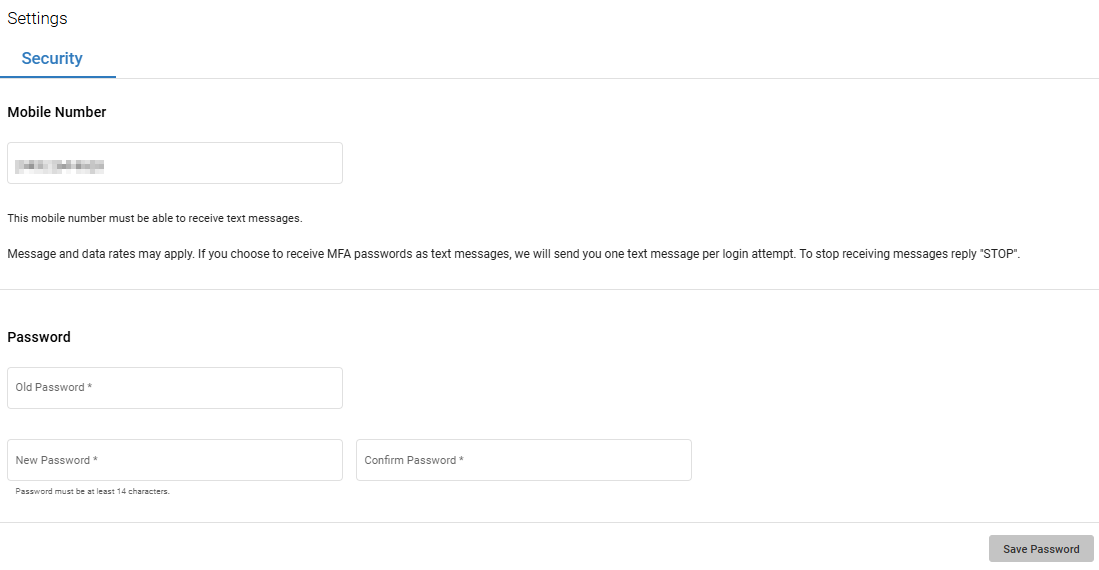
In the Security tab, you can add or update your mobile phone number and change your password.
How to Get Here
-
Go to Account Settings.
-
Select Security.
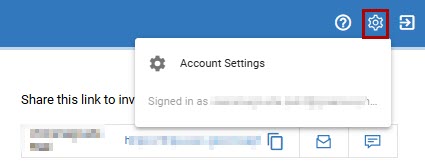
Users, Practice Setup, and Licenses settings will not display if you do not have administrator permissions.
Update Mobile Number
-
Enter your valid 10-digit mobile phone number in the given field.
-
Click Save.
Make sure the mobile number you enter can receive text messages (SMS). This number will be used to send One-Time PIN (OTP) for secure sign in verification.
Update Password
To update your password:
-
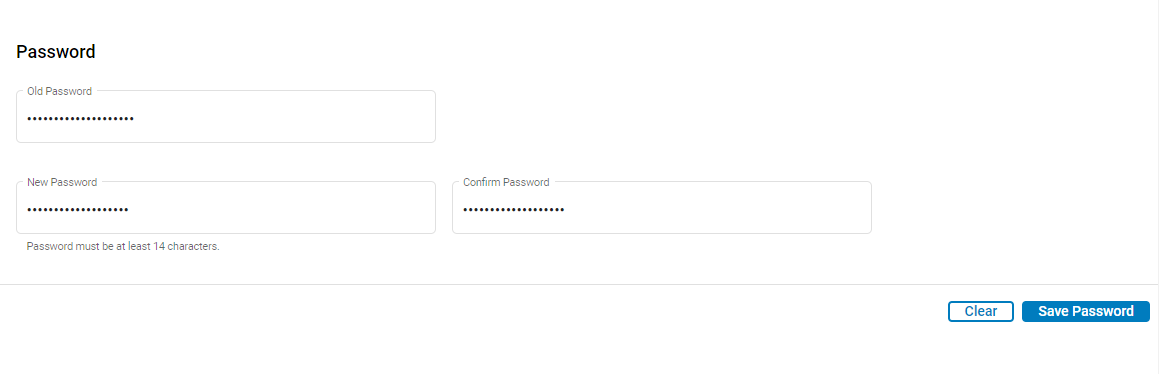
Enter your current password.
-
Enter your new password.
-
Confirm the new password by typing it again.
-
Click Save Password to apply the changes.
To reset all fields, click Clear.
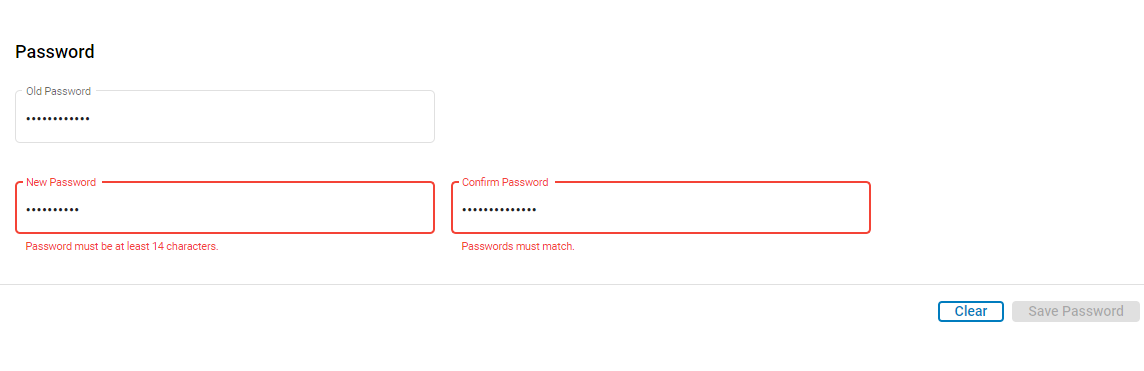
If your new password is less than 14 characters, or if the new and confirm passwords do not match, error messages will appear. To try again, select Clear and reenter your new password.